Embed a diagram in Notion, Confluence or your own site
A DrillFlow diagram can live inside another page and keep its depth there: readers double-click a shape to go a level down and use the breadcrumbs to come back, without leaving the page they are reading. Other embeds show a flat picture; this one is the diagram.
1. Make the embed link
- Open the diagram in the editor.
- Open the ≡ menu → Embed… and choose Create embed link.
- The dialog shows a live preview and three rows to copy:
Link, HTML (an
<iframe>) and Picture. Which one you need depends on where it goes — see below.
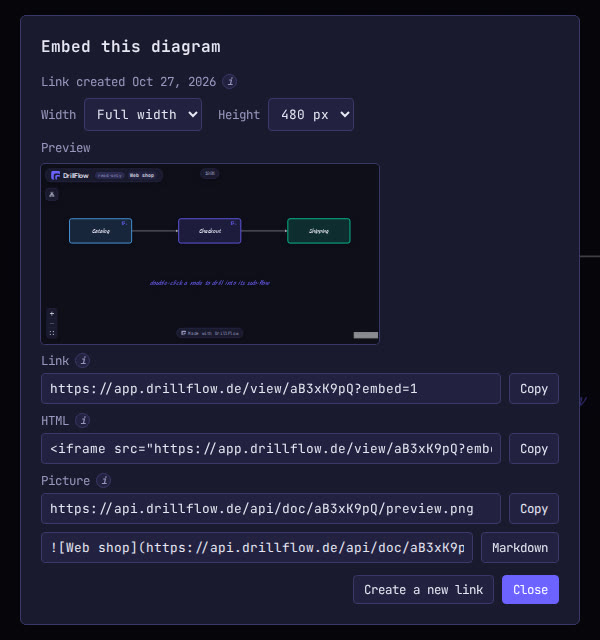
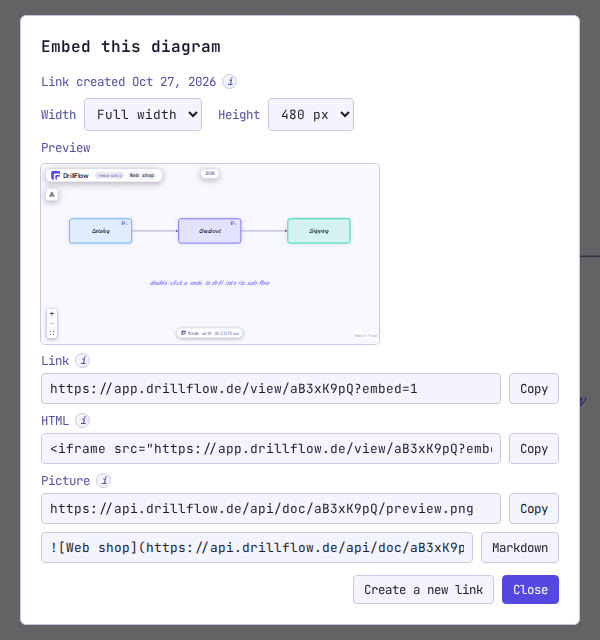
Sign in first if the embed should stay. A link made without an account stops working after 72 hours, and the page you embedded it in then shows an error instead of your diagram. A free account keeps its links.
An embed is a snapshot: later edits do not reach it. To show a newer version, create a new link and paste it again.
2a. Notion
- Copy the Link row from the Embed dialog.
- On your Notion page, type
/embedand pick Embed. - Paste the link and click Embed link.
- Drag the block's bottom edge until the whole diagram fits.
2b. Confluence (Cloud)
- Copy the Link row from the Embed dialog.
- While editing the page, type
/iframeand pick the iFrame macro. - Paste the link and set a height in pixels — 480 is a good start, and a width too if you want a fixed one.
- Publish the page.
Pasting the link on its own may only show a link card, which is why the iFrame macro is the way to get the diagram itself.
2c. Your own website or blog
- Copy the HTML row from the Embed dialog. Pick the size there first: a width of 100% follows the column it sits in, on a phone as well; the height is in pixels, because a frame has no height of its own.
- Paste it into the page's HTML, or into your site builder's HTML or custom-code block.
2d. A README, an email, anywhere a frame is not allowed
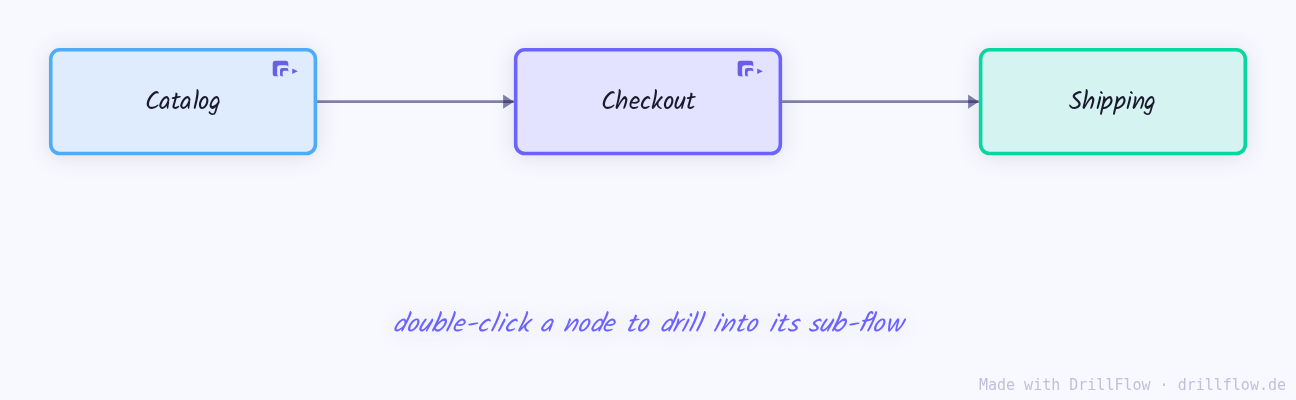
GitHub, email and many wikis strip frames. Copy the Picture row instead: it is a Markdown image of the diagram. To make the picture open the interactive diagram, wrap it in a link to the diagram:
[](diagram-url)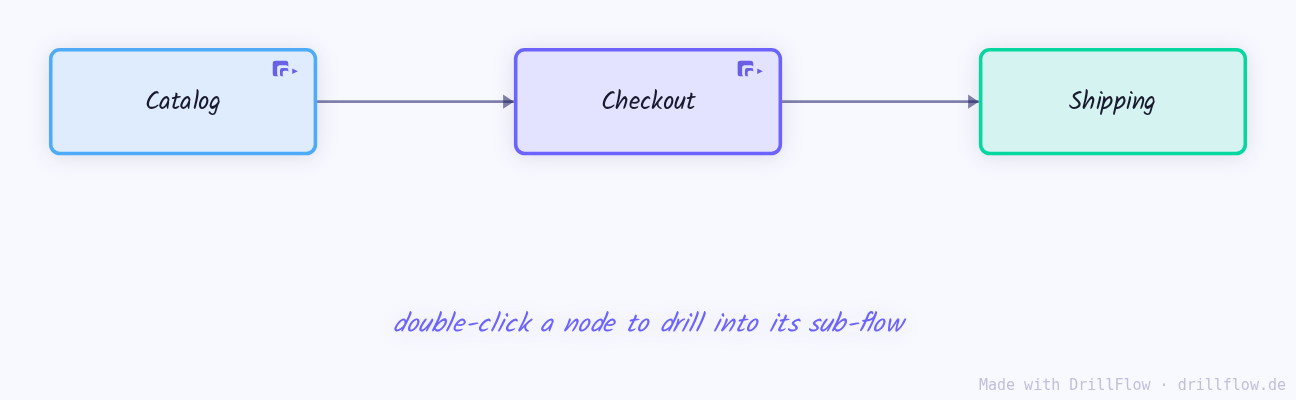
More
How embeds behave, in the help: Docs → Embedding.